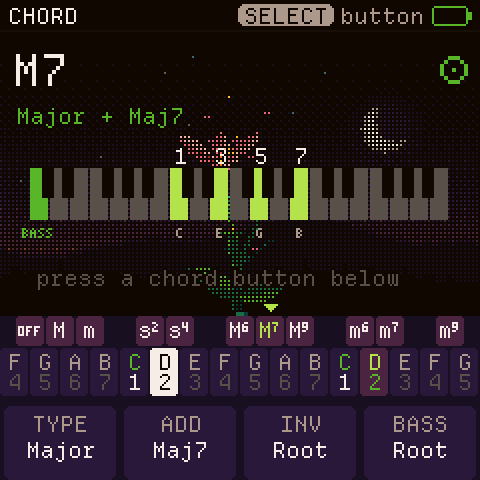
27 scales
Choose a scale and its starting note. The lower keys then play only the notes of that scale.
Your M-VAVE FM-1, made for chords.
Installing needs Chrome or Edge on a computer. On this device, you can still try CoralFlower with sound.
The FM-1 restarted with CoralFlower. You can unplug it now.
Stopped before “Switching to update mode”? Nothing was written. Plug the cable back in and press Install again.
Stopped while writing, with the FM-1 still on? It waits in update mode, with a black screen. Plug the cable back in and press Install again. Writing starts again from the beginning.
Did it switch off, or did the battery die? Switch it on. Three short flashes of the key lights and a black screen mean update mode: press Install again. This only works if the FM-1 already ran CoralFlower, or ChoralRoot 0.16 or later.
One long flash, no flash, or a USB disk called WL82 UBOOT1.00? See “Device not found” below.

Features
The lower keys play the notes of a scale you choose. Press an upper key, and every note becomes a chord: major, minor and sus, plus major and minor 6, 7 and add9. The chord stays on until you choose another one. CoralFlower is inspired by the Telepathic Instruments Orchid. Its controls are redesigned for the FM-1’s keys and buttons, because every instrument is played differently.
Choose a scale and its starting note. The lower keys then play only the notes of that scale.
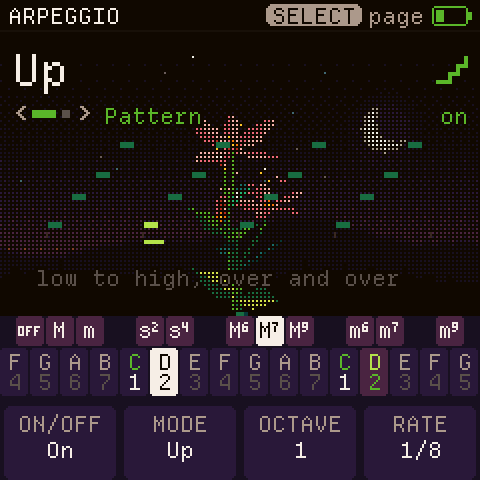
Nine patterns, including a strum up and down. They follow the FM-1’s tempo or an external MIDI clock.
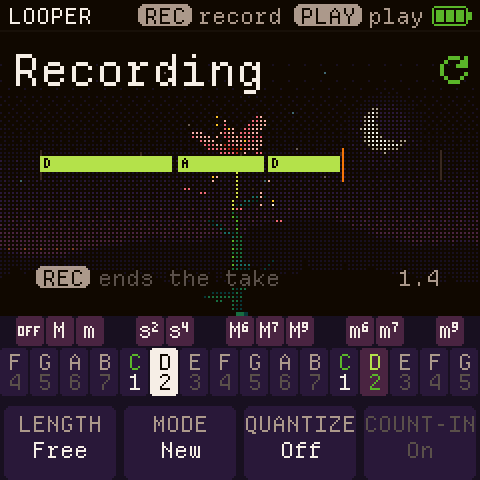
Record a chord progression and layer more on top. Undo the last layer. Save the loop, or it’s gone when you switch off.
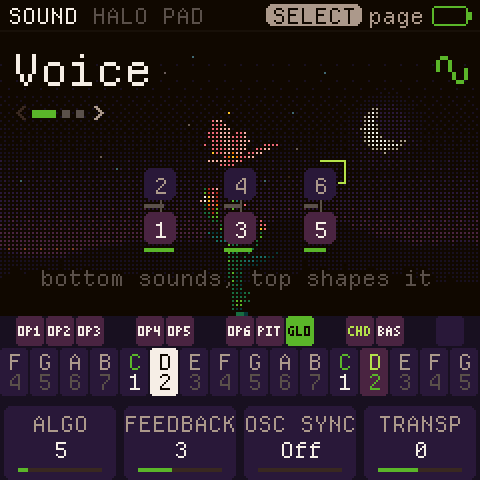
Pads, keys, strings and basses from two synth engines. A bass part plays under your chords.
The garden
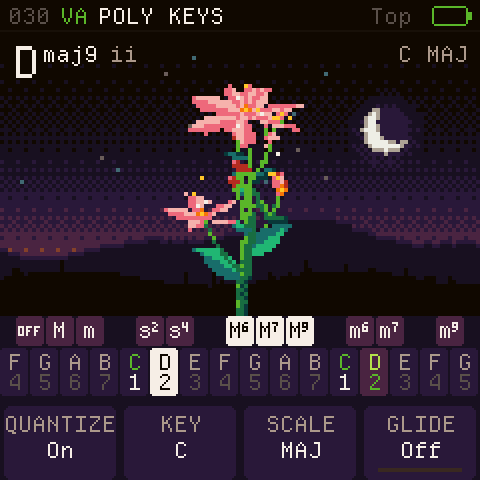
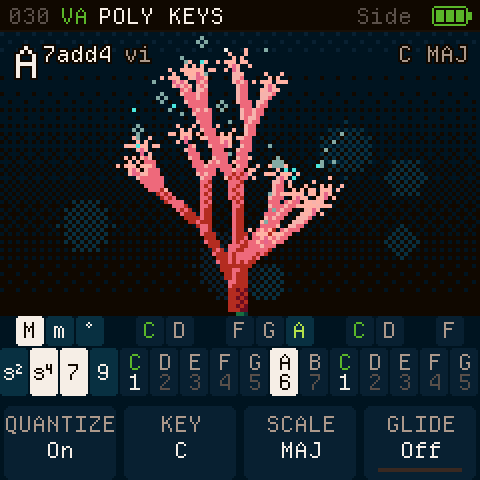
While you play, a flower grows on the FM-1 screen. Each note of the chord adds a part: a flower, a bud, a cluster of berries. In the Side key layout, a coral grows instead.
The plant’s structure follows PlantStudio, a program that models real plants.
Install
Installing firmware is at your own risk. CoralFlower is free software with no warranty. You can go back: the official firmware is on m-vave.com.

Step 3
Keep the cable plugged in until the page says Done.
Safety
A backup is one .json file. It holds everything saved on the FM-1: your settings, loops, sound banks and 32 user sounds.
Restore copies a backup onto the FM-1. It checks every part before it writes, then restarts the FM-1. Stop any loop first.
Backup and restore work with CoralFlower, ChoralRoot and Felucca. The official firmware can’t make backups.
The official firmware can’t use CoralFlower’s sounds, loops or settings, so this page saves them to a backup file first.
Download the official FM-1 V15 from M-VAVE Downloads. Then choose its FM-1.fwsc file here, exactly as downloaded. Your browser checks the file, and nothing is uploaded.
To come back, install CoralFlower with the Install button at the top. Then press Restore and choose that backup file.
Stopped before “Switching to update mode”? Nothing was written. Plug the cable back in and press the button again.
Stopped while writing, with the FM-1 still on? It waits in update mode, with a black screen. Plug the cable back in, tick “I’m finishing an update that was cut off” and press the button again, with the same official file chosen.
Did it switch off, or did the battery die? Switch it on and do the same. If this page doesn’t find it, see “Device not found”.
Check the cable first. Use a data cable, straight to the computer, not through a hub. Quit other apps that use MIDI. Switch the FM-1 on and press Install again.
Start update mode by hand. In update mode, the screen stays black and the FM-1 waits for new firmware. Switch the FM-1 off. Hold OCT− and switch it on. When the key lights flash three times and the screen stays black, it is in update mode: press Install. To leave without installing, switch the FM-1 off and on. This works with CoralFlower, or ChoralRoot 0.16 or later.
One long flash instead of three? Switch off for 10 seconds and try once more. A second long flash means the FM-1 can’t start update mode by itself. Until you switch it off, it appears as the USB disk described below.
While CoralFlower runs, you can also hold OCT−, OCT+ and HOME for five seconds. A countdown appears; let go to cancel. When it ends, the FM-1 is in update mode.
A screen that says SAFE MODE? The firmware crashed twice while starting, so it now starts without your saved data. That data stays untouched. Back up and Install both work in safe mode. To try your saved data again, switch the FM-1 off and on.
A black screen, and a USB disk called WL82 UBOOT1.00 (USB ID 4C4A:8057) instead of the FM-1? That is the chip’s ROM boot mode. The firmware doesn’t start, and this page can’t reach the FM-1 in this mode. Don’t format that disk. The MvaveFM1Unbricker tool can put the official V15 back over the same cable.
Nothing shows up at all, not even that disk? Then the way back is hardware: the FM-1 Transporter, a small RP2040 board on the USB lines. See FM-1-transporter.
Testing your own build? Choose its .fwsc file here.
Or choose a build of your own:
FAQ
The installer works in Chrome or Edge on a computer: Windows, macOS, Linux or ChromeOS. On a phone, you can still try it in the browser.
From CoralFlower, ChoralRoot or Felucca: no. An update keeps CoralFlower’s sounds, and the installer saves the others to a file first. From the official firmware: CoralFlower can’t use its sounds, and this page can’t save them.
The official M-VAVE firmware, ChoralRoot, Felucca and Melodee. To keep your FM-1 safe, the installer refuses early test builds such as Sloop.
Download the official FM-1 V15 file from m-vave.com. Then open “Return to the official firmware” on this page, choose that file and press “Back up and return to official V15”.
Come back to this page and press Install. It picks the newest version and keeps your sounds.
Almost never. Plug the cable back in and press Install again. If the FM-1 doesn’t show up, see “Device not found”.
Nothing. There are no ads and no paid version. If you enjoy it, you can support it.
Install it now, or try it in the browser first.